
Welcome back to another Excel deep dive — today we’re spotlighting the AVERAGE function in Excel, one of the most essential tools for anyone working with data. Whether you’re managing student gradebooks, preparing monthly business reports, or analyzing survey feedback, knowing how to use AVERAGE() makes your work faster and clearer. It’s simple, versatile, and perfect for turning raw numbers into meaningful insights in seconds. If you’re looking to sharpen your skills, advanced Excel training classes, an advance Excel course in Hindi, or even the best advanced Excel course near me can help you take your Excel advance learning to the next level.
In this guide, you’ll learn how to use it confidently, avoid errors like #DIV/0, and understand how it compares to MEDIAN or MODE. We’ll also explore practical uses like budgeting expenses, tracking performance, and analyzing KPIs.
With the right advanced Excel training classes, an advance Excel course in Hindi, or even the best advanced Excel course near me, you can take your Excel advance learning further and handle data smarter, faster, and with confidence.
💡 What Is the AVERAGE Function in Excel?
The AVERAGE function in Excel calculates the arithmetic mean of a range of numbers — meaning it adds up the numbers and divides by how many there are.
✅ It automatically ignores empty cells and text
❌ It only works with numeric data
📘 Syntax of AVERAGE
excel
CopyEdit
=AVERAGE(number1, [number2], …)
- number1, number2…: These can be actual numbers, cell references, or entire ranges.
In most use cases, you’ll reference a range like:
excel
CopyEdit
=AVERAGE(A1:A10)
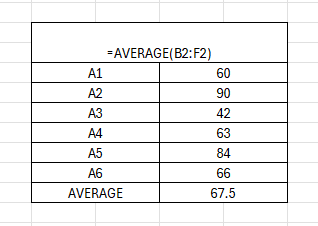
🔢 What It Does:
If A1 to A5 contain:
10, 20, 30, 40, 50 → Excel adds them to get 150
Then: 150 ÷ 5 = 30
✅ Final Result: 30
🧪 Real-Life Examples of the AVERAGE Function in Excel
Let’s walk through how this applies in actual business, school, and personal use.
1. 🎓 Calculate a Student’s Average Score
You’re tracking student grades across five subjects:
excel
CopyEdit
=AVERAGE(B2:F2)
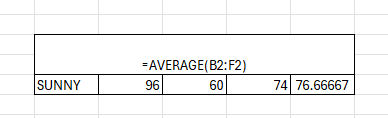
This gives the student’s overall grade average, skipping blanks or missing scores.
2. 💼 Calculate Average Monthly Sales
Imagine column B contains sales for January to December:
excel
CopyEdit
=AVERAGE(B2:B13)
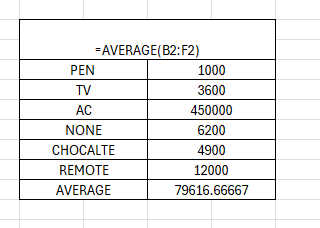
Boom — instant annual average sales value for reports or dashboards.
3. 🧾 Budgeting: Average Weekly Expenses
You log expenses in column C:
excel
CopyEdit
=AVERAGE(C2:C8)
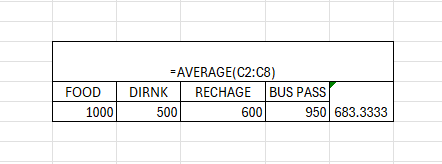
This gives you a clean view of your weekly average spending — perfect for personal finance tracking.
4. 🛒 Inventory Management
Calculate the average units sold per product:
excel
CopyEdit
=AVERAGE(D2:D50)
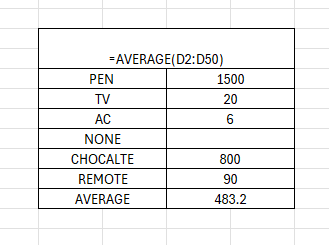
Helps you decide what to reorder and forecast demand more accurately.
5. 📈 KPI Dashboard: Average Conversion Rate
You’re tracking 12 monthly conversion rates in column E:
excel
CopyEdit
=AVERAGE(E2:E13)
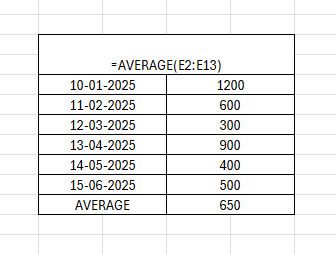
Use this for automated quarterly or yearly summaries in your business dashboard.
✅ Combining AVERAGE with Other Functions
The real power comes when you combine AVERAGE() with other Excel tools:
🔍 AVERAGE + IF = AVERAGEIF
Only average cells that meet a condition.
Example: Average sales above $1000:
excel
CopyEdit
=AVERAGEIF(B2:B13, “>1000”)
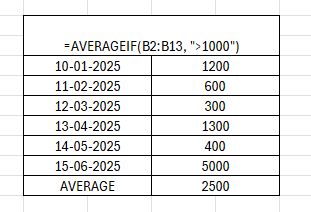
🔁 AVERAGE + ROUND
Want a cleaner result?
excel
CopyEdit
=ROUND(AVERAGE(A1:A10), 2)
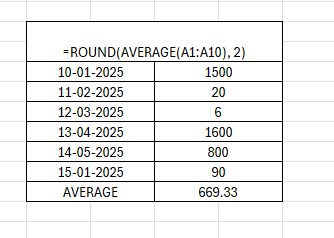
This rounds the average to 2 decimal places.
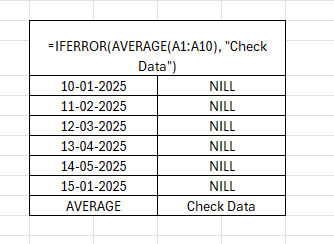
🧩 AVERAGE + IFERROR
Prevent your average from breaking due to errors:
excel
CopyEdit
=IFERROR(AVERAGE(A1:A10), “Check Data”)
⚠️ Common Mistakes with AVERAGE
❌ Including Text or Errors
If your range includes:
- Cells with #DIV/0!
- Text instead of numbers
- Formulas that return blanks
Excel skips them — but be cautious. The average might not be what you expect if you’re missing data.
❌ Averaging Across Mismatched Rows
Make sure your AVERAGE() references the correct range. Double-check for:
- Hidden rows
- Empty columns
- Filtered data
❌ Averaging Zeroes vs Blanks
Zero (0) is included in the calculation.
A blank cell is ignored.
That can affect your average significantly.
Example:
| Value | Counted? |
| 0 | ✅ Yes |
| Blank | ❌ No |
📊 Summary Table: AVERAGE in Excel
| Formula | What It Does |
| =AVERAGE(A1:A10) | Averages all numbers in range |
| =AVERAGE(A1, A3, A5) | Averages selected cells |
| =AVERAGEIF(B2:B100, “>1000”) | Averages values over 1000 |
| =ROUND(AVERAGE(C2:C12), 2) | Rounds average to 2 decimals |
| =IFERROR(AVERAGE(A2:A12), “Error in Data”) | Handles error gracefully |
📈 AVERAGE in Excel Dashboards
AVERAGE is a core KPI metric in dashboards:
- Average customer spend
- Average call duration
- Average page views
- Average time to complete a task
Pair it with:
- Sparkline charts
- Conditional formatting
- Drop-down filters + AVERAGEIF
💡 Dashboard Example:
excel
CopyEdit
=”Avg Monthly Sales: $” & ROUND(AVERAGE(B2:B13), 0)
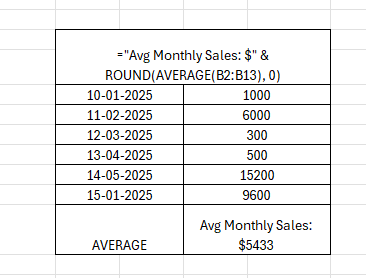
Returns:
“Avg Monthly Sales: $3,475”
Dynamic, beautiful, and automated.
💬 When to Use AVERAGE vs MEDIAN
Sometimes average can be skewed by outliers.
| Metric | When to Use |
| AVERAGE() | For balanced datasets |
| MEDIAN() | For skewed data (e.g. salaries, housing prices) |
🧠 Pro Tips for Excel AVERAGE Mastery
✔️ Use named ranges for cleaner formulas:
excel
CopyEdit
=AVERAGE(Sales2023)
✔️ Use AVERAGEIFS() to average with multiple criteria
✔️ Build visual dashboards with average lines in charts
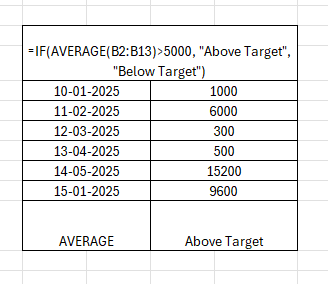
✔️ Use AVERAGE() inside IF() statements to create custom messages like:
excel
CopyEdit
=IF(AVERAGE(B2:B13)>5000, “Above Target”, “Below Target”)
🔚 Conclusion
The AVERAGE function in Excel is one of the most essential tools for anyone working with numbers. Whether you’re a student calculating test scores, a business owner analyzing performance, or a finance pro building dashboards — =AVERAGE(range) gives you fast, reliable insights in just seconds.
Use it solo for simplicity, or combine it with logic formulas like IF, ROUND, and AVERAGEIF to build dynamic, intelligent spreadsheets.
Summary
✨ Welcome back to another Excel deep dive! Today, we’re spotlighting the AVERAGE function in Excel, a simple yet powerful tool that every data user must master. Whether you’re tracking student gradebooks, preparing monthly business reports, or analyzing survey feedback, AVERAGE() transforms raw numbers into clear insights within seconds. If you’re looking to upgrade your skills, enrolling in advanced Excel training classes, an advance Excel course in Hindi, or searching for the best advanced Excel course near me will help you sharpen your Excel advance learning.
📊 How it Works: The AVERAGE function calculates the arithmetic mean by summing values and dividing by the count. It automatically skips blanks and text, but only works with numbers. For example:=AVERAGE(A1:A10) → returns the average of values in cells A1 through A10. It’s perfect for tasks like student score averages 🎓, monthly sales reports 💼, budgeting weekly expenses 🧾, tracking KPIs 📈, or even managing inventory 🛒.
💡 Pro Tips:
- Use AVERAGEIF / AVERAGEIFS to apply conditions (e.g., sales above $1000).
- Combine with ROUND() for cleaner results.
- Add IFERROR() to handle data issues gracefully.
- Watch out for zeroes vs blanks — they change your results.
- For skewed datasets (like salaries), compare AVERAGE vs MEDIAN for accuracy.
✅ Bottom line: The AVERAGE function in Excel is your go-to tool for smarter data analysis. Whether in dashboards, reports, or models, mastering it through the right Excel training can make you faster, clearer, and more confident in business and personal data decisions.
OUR BRANCHES
G-40, Nav Mangalam Complex, opp. Agersen Bhavan, City Light
G-48-B, J9 high street, Vesu Canal Rd, Vesu
115, Raj Victoria complex, Pal