
Negative numbers can throw off calculations, visuals, and even decision-making. The ABS Function in Excel is a tool that instantly removes negative signs and returns the absolute value of a number. Whether you’re tracking financial losses, correcting data entry errors, or just want clean figures in your dashboards, ABS is your go-to solution.
What Is the ABS Function in Excel?
Let’s keep it simple: The ABS function returns the absolute value of a number—meaning it removes the negative sign. Think of it like this: ABS just cares about the size (magnitude), not the direction (positive or negative).
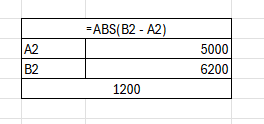
ABS Function Syntax (So Easy It Feels Like Cheating)
=ABS(number)

*Parameter: 'number' can be any number, formula, or cell reference.*
*Example: =ABS(-15) returns 15.*
Real-Life Example 1: Budget Overruns and Losses
Let’s say you manage a marketing budget. You’re comparing actual spend vs. budgeted spend.
Budget (Column A): **$5000**
Actual Spend (Column B): **$6200**
Standard Formula `=B2-A2` gives **+1200**. (Or -1200 if under budget).
To show the magnitude of the difference regardless of direction:
=ABS(B2 - A2)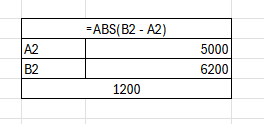
Result: 1200. Clean, client-friendly, no red flags—just raw data.
Real-Life Example 2: Customer Refunds
You run a store that processes refunds. Some refund values come in as negative entries (-25, -40) in your data export. But for reporting, you want them all to show as positive amounts.
=ABS(C2)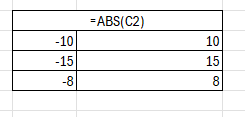
Now you’ll get 25, 40, and 15. This is great for monthly refund summaries and finance reconciliation.
Real-Life Example 3: Comparing Performance Differences
You’re an HR analyst comparing employee sales vs targets. You want to measure how far off someone is from the goal, without worrying about whether it’s under or over.
=ABS(B2 - A2)Perfect for ranking, bonuses, or alerts where the size of the gap is what matters most.
Real-Life Example 4: Remove Negative Signs for Clean Charts
Visualizing values with negative signs can make bar charts or dashboards confusing. If you have return costs like -1500 and -300, you don’t want a negative bar.
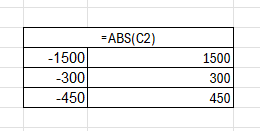
The Fix: Use `=ABS(E2)` to convert them, then chart the ABS column. Now all your bars move in the same direction, making them easier to read for viewers.
Real-Life Example 5: Dynamic Score Differentials
You’re analyzing sports scores. Team A scored 95, Team B scored 102. You just want to know the score difference (7), not who won.
=ABS(A2 - B2)Great for leaderboards, recaps, and summary sheets where ties display as 0.
PRO TIP: Use ABS with IF or Conditional Formatting
Let’s say you want to highlight cells where the variance is more than $500, regardless of whether it’s over or under. Instead of two rules, use one:
=ABS(B2 - A2) > 500Now any big gap lights up automatically.
Common Mistakes with ABS (And How to Avoid Them)
❌Mistake 1: Using ABS with text
`=ABS(“hello”)` returns #VALUE!.
Fix: Wrap it in IFERROR: `=IFERROR(ABS(A2), “”)`.
❌Mistake 2: Forgetting it removes direction
ABS is all about magnitude. If you need to know if a balance is specifically negative, do not use ABS.
❌ Mistake 3: Using it to filter
ABS turns negatives into positives; it doesn’t “filter out” negatives. It changes their value.
Bonus: Nest ABS in Formulas for Smarter Logic
Want to calculate late penalties only if someone is over the due date?
=IF(B2 > A2, ABS(B2 - A2), 0)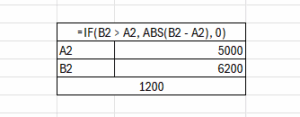
If they are late, it shows exactly how many days (absolute number). If not, it shows zero. That is professional logic made simple.
✅Summary: Why the ABS Function in Excel Matters
Let’s recap. The ABS function:
- Returns the absolute value (removes negative signs).
- Keeps data clean for analysis.
- Is essential for budgeting, finance, dashboards, and KPI tracking.
Conclusion
The ABS Function in Excel may be simple, but its impact is powerful. By stripping away negative signs, ABS lets you focus on what really matters — the value of differences, gaps, and magnitudes — without the distraction of direction. From budget variances to refund reports, this one function can streamline your workflow and sharpen your insights.
Turn Negatives Into Productivity!
Master functions like ABS, MOD, and Pivot Tables with our specialized
courses in Advanced Excel and Data Science.