
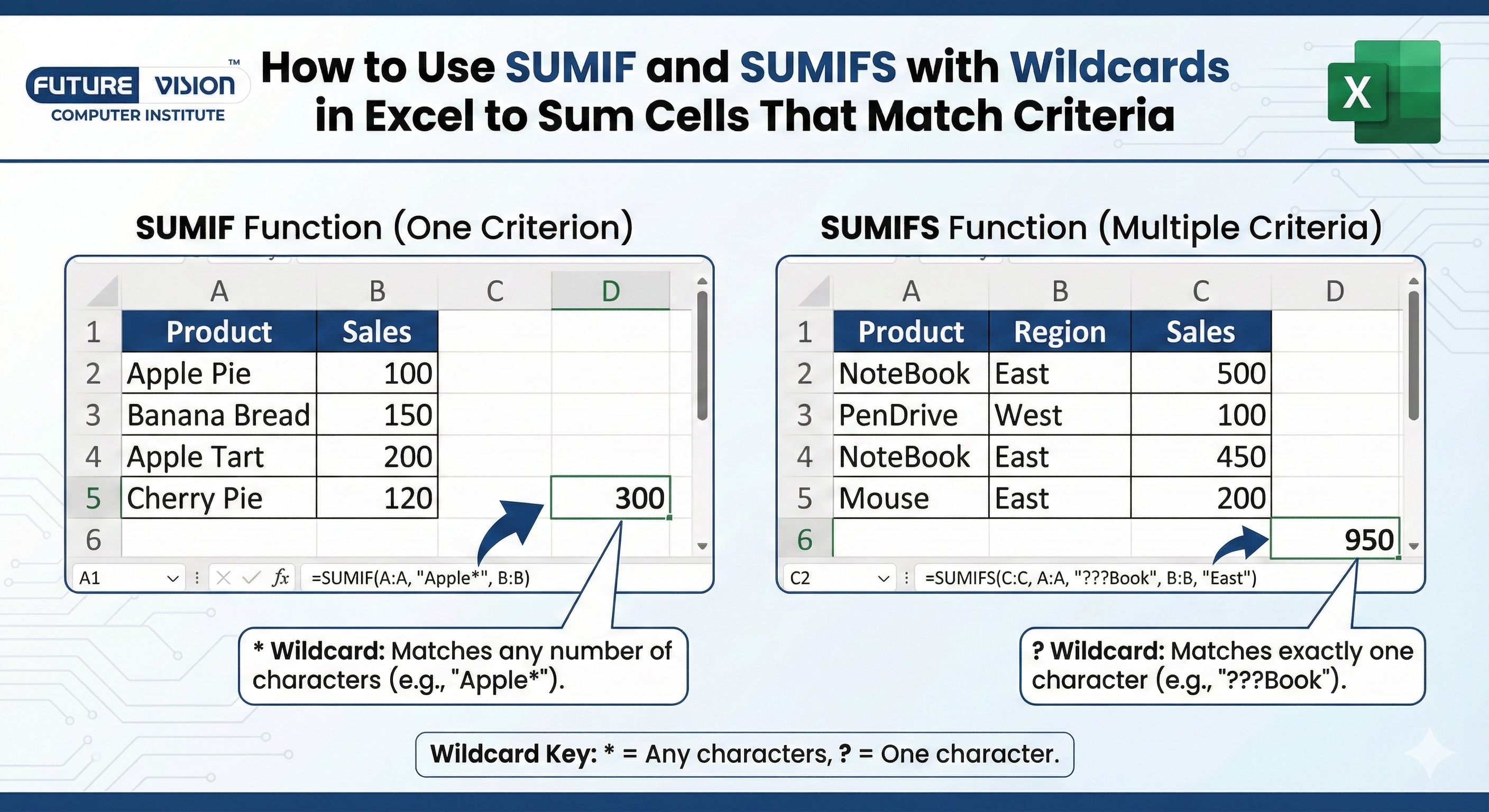
When working with Excel data, you’ll often need to sum values based on partial matches. That’s where SUMIF and SUMIFS in Excel become essential. Using SUMIF in Excel and SUMIFS in Excel, you can track sales by product codes, filter results by region names, or manage inventory items with similar prefixes. These techniques are a core part of a microsoft advance excel course and are taught at an advanced Excel institute near me to handle real-world data efficiently.
This is where Excel’s SUMIF and SUMIFS functions with wildcards become powerful tools. In this tutorial, you’ll learn how to use them to sum data with fuzzy matches and avoid common mistakes—skills taught in a Microsoft advanced Excel course at an advanced Excel institute near me.
🧠 What Are SUMIF and SUMIFS?
These are conditional summing functions—they allow you to add values only if certain criteria are met.
✅ SUMIF
Sums values in sum_range if ONE condition is met.
=SUMIF(range, criteria, [sum_range])✅ SUMIFS
Sums values if MULTIPLE criteria are satisfied.
=SUMIFS(sum_range, crit_range1, crit1, ...)✨ What Are Wildcards?
Wildcards are special symbols that represent unknown or variable characters in strings.
| Wildcard | Meaning | Example |
|---|---|---|
| * | Any number of characters | “*apple” → red apple, green apple |
| ? | Any SINGLE character | “appl?” → apple, apply |
You can use these inside your SUMIF or SUMIFS criteria to match values that aren’t exact—but close enough.
🧪Real-Life Example 1: SUMIF with Wildcards
You manage a product sales sheet:
| Product Name | Sales |
| Red Apple | 150 |
| Green Apple | 100 |
| Apple Juice | 90 |
| Banana Smoothie | 80 |
| Apple Pie | 70 |
You want to sum all sales where the product contains the word “Apple”.
✅ Formula:
=SUMIF(A2:A6, "*Apple*", B2:B6)Result: 150 + 100 + 90 + 70 = 410
Even though “Apple” appears in different ways (beginning, middle, end), the *Apple* wildcard pattern catches them all.
Microsoft advanced Excel course
🔧 Real-Life Example 2: SUMIF with ? Wildcard
Let’s say you have product IDs like:
| Product ID | Quantity |
| A1001 | 50 |
| A1002 | 60 |
| A2001 | 40 |
| A3001 | 90 |
You want to sum quantities for all product IDs that start with “A1” and are 5 characters long.
✅ Formula:
=SUMIF(A2:A5, "A1???", B2:B5)? matches one character per question mark, so “A1???” matches IDs like “A1001”, “A1002” (but not “A2001”).
Result: 50 + 60 = 110
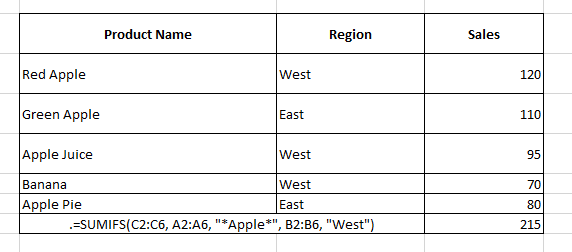
📘 Real-Life Example 3: SUMIFS with Wildcard + Region
You have:
| Product Name | Region | Sales |
| Red Apple | West | 120 |
| Green Apple | East | 110 |
| Apple Juice | West | 95 |
| Banana | West | 70 |
| Apple Pie | East | 80 |
✅ Formula:
=SUMIFS(C2:C6, A2:A6, "*Apple*", B2:B6, "West")Result: 120 + 95 = 215
🧮Real-Life Example 4: SUMIFS with Multiple Wildcards
You have:
| Customer Name | Product Category | Sales |
| John Doe | Fruit-Apple | 150 |
| Jane Smith | Fruit-Banana | 120 |
| John Smith | Fruit-Apple | 130 |
| Jane Doe | Vegetable-Carrot | 100 |
✅ Formula:
=SUMIFS(C2:C5, A2:A5, "John*", B2:B5, "*Apple")Result: 150 + 130 = 280
💡 Pro Tip: Dynamic Wildcards
Instead of hardcoding “*Apple*”, let the user type a search term in cell E2.
=SUMIF(A2:A6, "*" & E2 & "*", B2:B6)The ampersand (&) joins the wildcards to the cell value.
🔄 Use SUMIFS to Combine Exact and Partial Matches
You can use exact match for one condition and wildcard for the other.
=SUMIFS(SalesRange, CategoryRange, "Fruit*", RegionRange, "East")✅ How to Use Wildcards for Numeric-Looking Text
However, some data appears numeric but is stored as text—such as ZIP codes, product IDs, or customer IDs, which can impact calculations and analysis in Excel.
=SUMIF(A2:A100, "12???", B2:B100)This would sum values where the ZIP code starts with 12 and is 5 digits total.
🚫 Common Mistakes When Using Wildcards
| Mistake | Why It’s a Problem |
| Forgetting quotation marks | Wildcard patterns like Apple must be in quotes |
| Using wildcards in numeric criteria | Won’t work unless the numbers are stored as text |
| Incorrect use of ? | ? only replaces a single character, not many |
| Not matching case-sensitivity | Wildcards are case-insensitive, which may confuse users |
🧠 Tips for Mastering SUMIF/SUMIFS with Wildcards
Always use quotes for string patterns:
=SUMIF(A2:A10, "*apple*", B2:B10)Combine wildcards and cell references for dynamic formulas:
=SUMIF(A2:A10, "*" & D2 & "*", B2:B10)Use IFERROR() to clean up formulas:
=IFERROR(SUMIF(A2:A10, "*apple*", B2:B10), 0)📘 TL;DR – Wildcard SUMIF/SUMIFS Formulas
| Goal | Formula Example |
| Sum if cell contains word “Apple” | =SUMIF(A:A, “*Apple*”, B:B) |
| Sum if value starts with “A1” (5 chars) | =SUMIF(A:A, “A1???”, B:B) |
| Multiple conditions (Apple + West) | =SUMIFS(C:C, A:A, “*Apple*”, B:B, “West”) |
| Using dynamic search in cell | =SUMIF(A:A, “*” & E2 & “*”, B:B) |
✅ Final Thoughts
Learning how to use SUMIF and SUMIFS with wildcards in Excel opens up a world of flexible, intelligent data analysis.
You can now:
- Sum data using partial text
- Filter based on character patterns
- Combine wildcards with multiple criteria
- Make formulas dynamic and user-driven
Therefore, whether you’re creating a dashboard, analyzing regional sales, or auditing inventory, this skill will not only save you time but also elevate your spreadsheets to the next level—which is exactly what you learn in a Microsoft advanced Excel course at an advanced Excel institute near me.
Find Our Locations
Visit any of our three convenient branches or contact us directly.
Pal Branch
Address: 115, Raj Victoria Complex, Pal Gam Circle, Pal.
Phone: +91-9825771641
Turn Negatives Into Productivity!
Master functions like ABS, MOD, and Pivot Tables with our specialized
courses in Advanced Excel and Data Science.